Safe internet for every device at home
SwearGuard covers the Windows PC. SwearGuard DNS covers everything else: phones, tablets, consoles, TVs and the whole home network from the router. Parents pick what to block, set weekly schedules and give each kid's device its own rules, in one web portal.
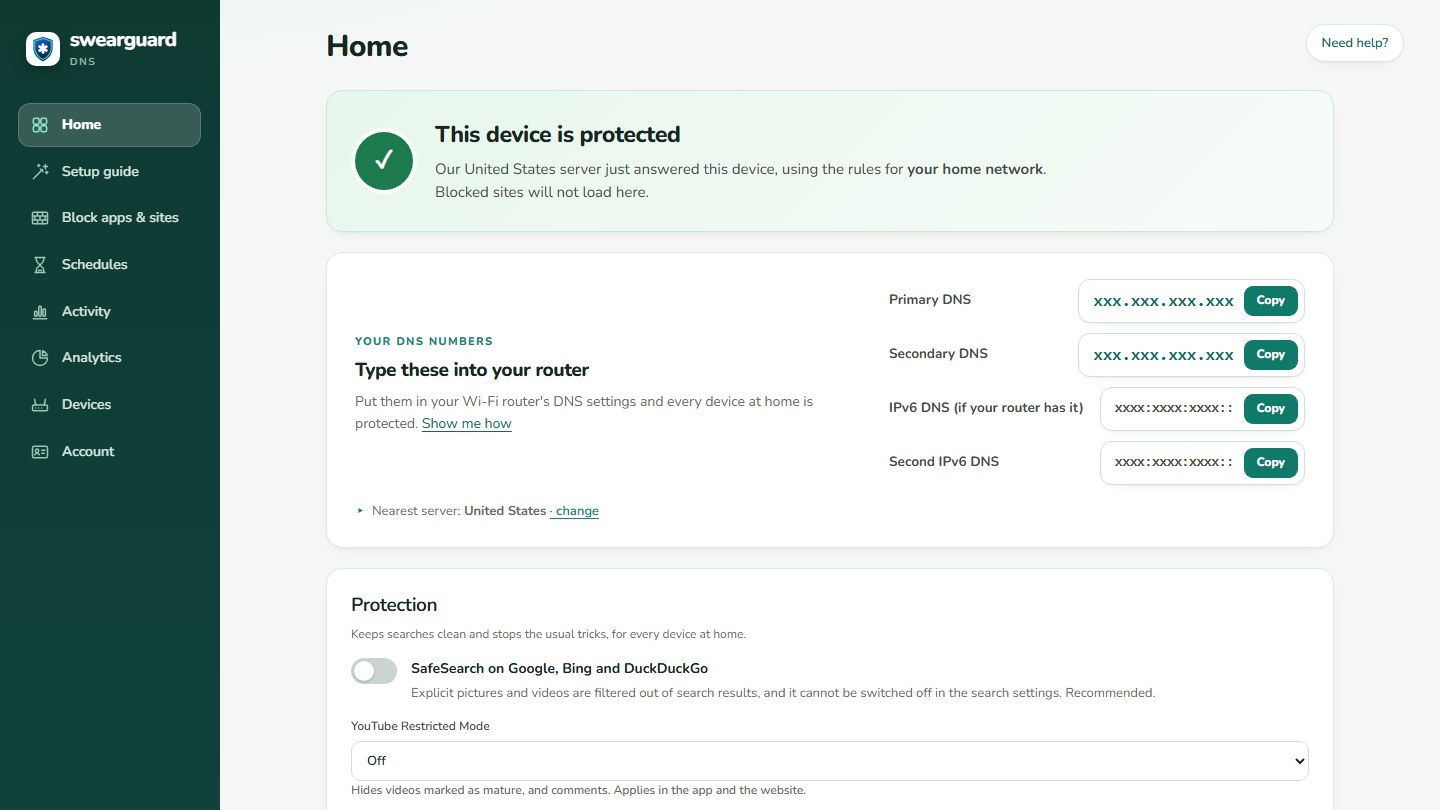
Sample numbers. Server addresses are hidden.
Why parents want it
A short ad.
An ad blocker for every device
On from day one. Ads, trackers and known malware sites are blocked on phones, TVs and consoles too, where you can't install a browser add-on.
Pick how much
- Ads, trackers and malware are blocked by default, on every new profile
- 19 public block lists to switch on, from ads and pop-ups to phishing, scams, piracy and drugs
- Device tracking from Apple, Windows, Samsung, Xiaomi, Huawei and OPPO, if you want it quiet
- Brand new websites, which scammers use, can be blocked for their first 7 days
- Block whole website endings, such as .zip, .xyz or .click, up to 100 of them
Fresh every day
- Lists refresh every night. A list that fails to download keeps the last good copy
- Changes you make take effect in about 10 seconds
- Your own Always block and Always allow lists. Allow always wins
- See which rule blocked a site, and check any site before you visit it
Honest limit: ads that come from the same address as the video or page itself, such as some ads inside video apps, can't be told apart by DNS and may still show.
Lists, schedules and devices
A separate, optional service. It filters phones, tablets, consoles, TVs and PCs, with or without the SwearGuard app.
Your lists, your rules
- Pick from public block lists: ads and trackers, adult sites, gambling, social media and fake news
- Extra lists for scams, phishing, brand new websites, pop-up ads and device tracking
- Block 46 games and apps by name, like Roblox, Fortnite, Minecraft, TikTok, Discord and YouTube
- Block whole kinds of sites in one tick: 29 dating apps, 9 random video chat sites, piracy, drugs, gambling and more
- Your own Always block and Always allow lists. Allow always wins
- Check any website to see if it is blocked, and which rule blocked it
Different rules for each kid
- Weekly schedules, such as Roblox off on school mornings and Minecraft off at night
- Give each device its own rules and its own private, encrypted address. Android uses its built-in Private DNS, with a private name for each device
- Or cover the whole home from the router
- Step by step guides for Windows, iPhone, iPad, Mac, Android, browsers and routers
- A Windows setup file you can undo, and a profile for iPhone, iPad and Mac
- History, only if you want it
- Off until you turn it on. Watch sites as they are looked up, then block or allow one in a click. Clear it any time. Filter the log by device.
- Our own servers
- Five servers: the United States, South Africa (two), Belgium and Singapore. Setup picks the fastest one for you and keeps the next fastest as a backup. A public status page shows each server’s uptime.
See what your network is doing
One bar for every hour. Green is what was allowed, red stripes are what was blocked. You see at a glance how busy your home was and how much the filter caught.
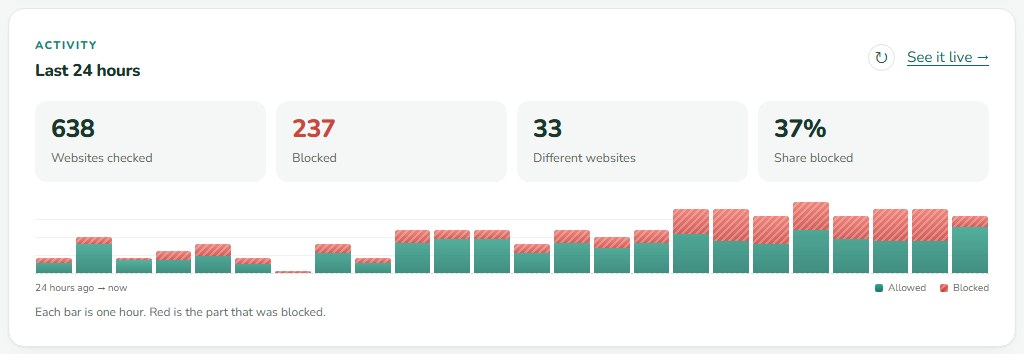
Sample numbers.
Every number, one page
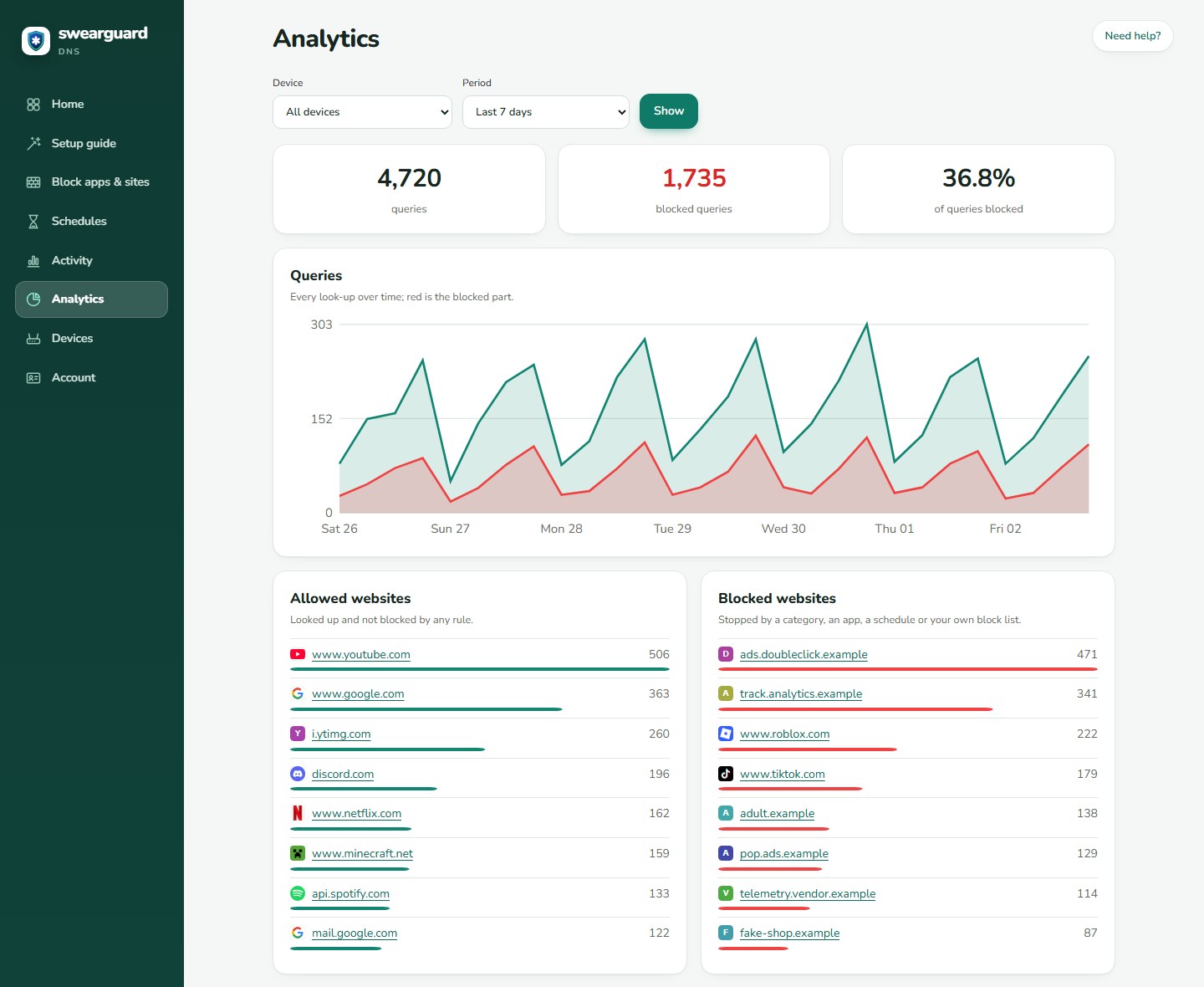
Pick a device and a period, 24 hours or 7 days. The Analytics tab shows how many lookups were made, how many were blocked, and exactly where they went.
See where your traffic goes
A world map of every website your home visits. Countries get darker the more traffic went there. Hover a country to see its busiest websites, or click it to see the websites, which devices asked, the kinds of lookup and the addresses behind it.
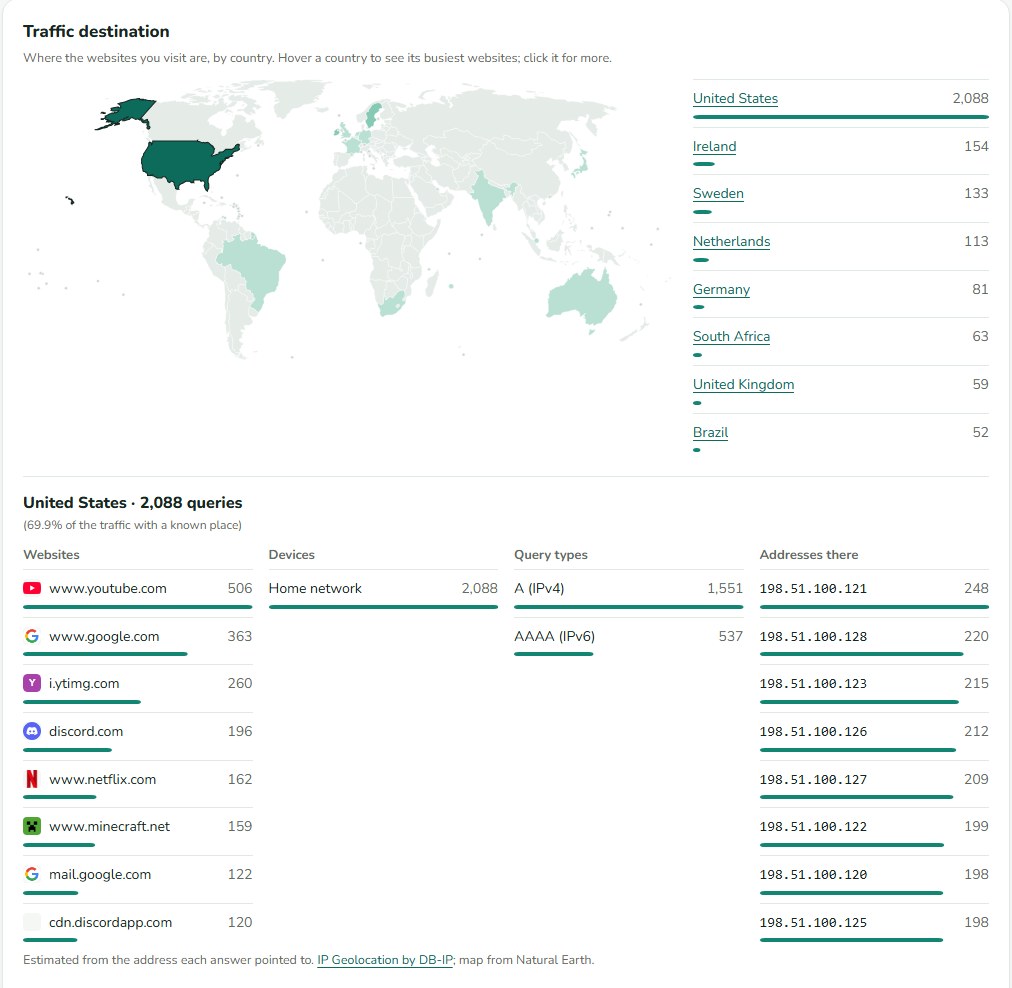
Each country is worked out from the address a website's answer pointed to, so it is an estimate. Website icons are kept on our own server, so your browser never asks a third party which sites your family visits.
All sample numbers from a test account.
The numbers that matter
- Websites checked, how many were blocked, how many different sites, and the share blocked
- A green tick that says protection is working, with a live "is this device protected?" check
- Watch sites as they are looked up, and block or allow one in a click
The full picture, for 24 hours or 7 days
- Queries over time, with the blocked part in red
- Top allowed sites and top blocked sites
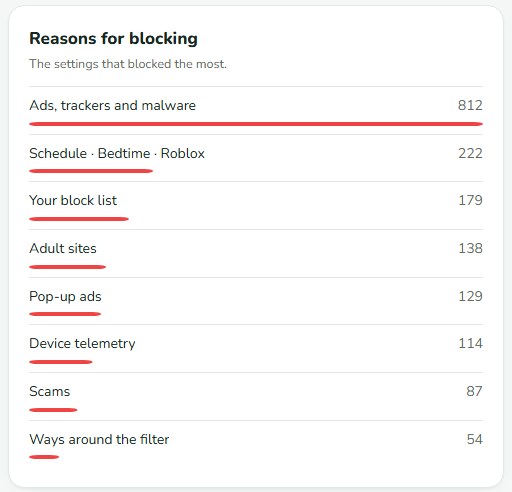
- Why sites were blocked, and which devices ask the most
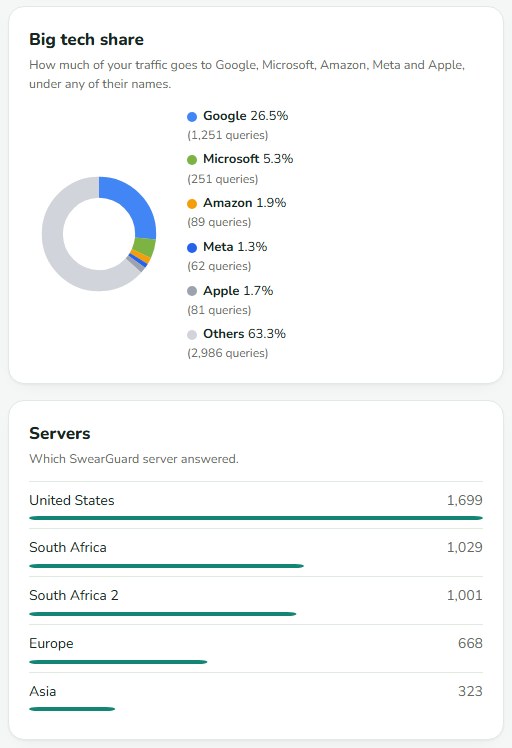
- Root domains, network addresses and a big tech share
- How much of your traffic is encrypted, which server answered, and what types of questions were asked
- A traffic map: click a country to see what went there
History is off until you turn it on. It keeps up to 7 days, you can clear it any time, and you can switch it on for the whole home or for one device.
Works on whatever they have
- Windows
- A setup file with a preview, and an undo button.
- iPhone, iPad and Mac
- A profile you download and install.
- Android, browsers, routers
- Step by step guides you can search.
- Whole home
- Link the home network from the router. Changing home addresses are handled.
Plans, and protection that sticks
Three plans, by number of devices. Basic is free for 7 days, then billed monthly or yearly. Pay yearly and you get 2 months free.
- Basic
- Up to 5 devices with their own rules. $3.99 a month, or $39 a year. 7 days free; a card is needed, and nothing is charged until the 7 days are over.
- Family
- Up to 12 devices. $5.99 a month, or $59 a year. Starts straight away, with a 14-day money-back guarantee.
- Family Plus
- Up to 25 devices. $8.99 a month, or $89 a year. Starts straight away, with a 14-day money-back guarantee.
- Every plan
- Covers your whole home Wi-Fi. The plans differ in how many devices get their own rules away from home. Payments are handled by Paddle, and the terms and refund policy are on the SwearGuard website.
- Protection that sticks
- SafeSearch is forced on and cannot be switched off in the search settings. YouTube Restricted Mode has Off, Moderate and Strict.
- Ways around the filter
- Blocks VPNs, proxies, Tor, iCloud Private Relay and other DNS services. Note that a VPN a child already uses will stop working.
- Safer home network
- Stops a website name from pointing at devices inside your home.
- Is this device protected?
- A live check on the home screen answers in seconds, so you are never guessing.
- Home internet that changes address
- Type your router's dynamic DNS name. We follow it every minute, so the filter keeps working.
- IPv6 ready
- Works on modern home networks, not only older ones.
- Searchable help
- Setup guides for Windows, iPhone, iPad, Mac, Android, browsers and ten kinds of router, including TP-Link, Netgear, ASUS and Google Nest. Each one has a check step and an undo step.
DNS blocks whole websites, not single ads inside a site. It cannot stop games played offline.
Next sheetDarkFlow →